Try these five PC checks in order
Complete the checks in order. Relaunch after each change and stop when the demo opens to a playable window. [1] [2]
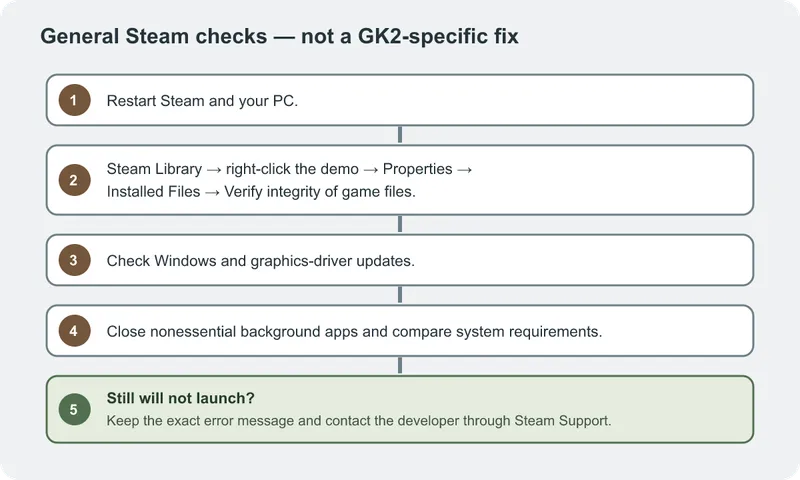
- Restart Windows and Steam. Reopen the demo from your Library and check whether a game window appears.
- Update Windows and your GPU driver. Restart after both updates, then launch the demo again.
- Verify the demo files. In your Library, right-click Graveyard Keeper 2 Demo → Properties → Installed Files → Verify integrity of game files. When the check finishes, choose Play again.
- Close overlays and nonessential apps. Temporarily close tools such as Nvidia App and Discord, then launch with Steam and the demo only.
- Compare your PC with the published requirements. Use the platform support guide to check Windows, CPU, RAM, graphics, DirectX, and storage. [1] [2]
If the demo still will not launch
If all five checks fail, use the game’s Steam Support page. Include the exact error, the action immediately before it, repeatable steps, Player.log from %USERPROFILE%\AppData\LocalLow\Lazy Bear Games\Graveyard Keeper 2, and any crash log from %USERPROFILE%\AppData\Local\Temp\Lazy Bear Games\Graveyard Keeper 2\Crashes if available. Since the game does not open, skip the in-game feedback tool. [2]
If you have not installed the demo yet, follow the demo access guide. For the demo’s length and cutoff, see the demo content guide; for PC requirements, see platform support.